
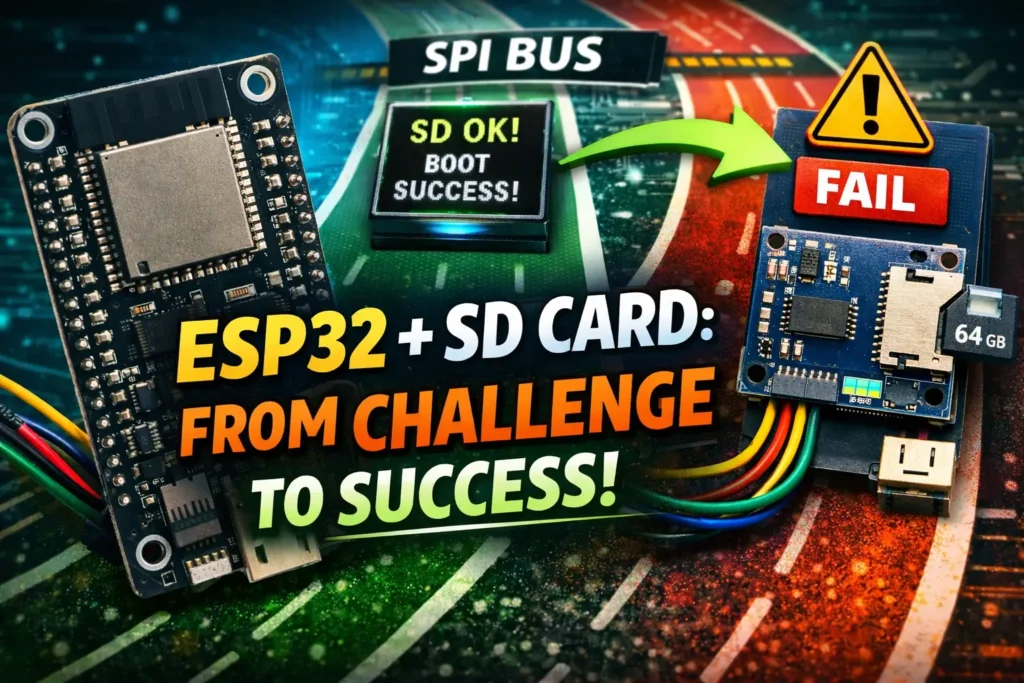
Hardware Required
128×128 HD TFT OLED display
SD card module
Breadboard & Jumper Wires
The Display Pin Fiasco: Tackling the First Challenge
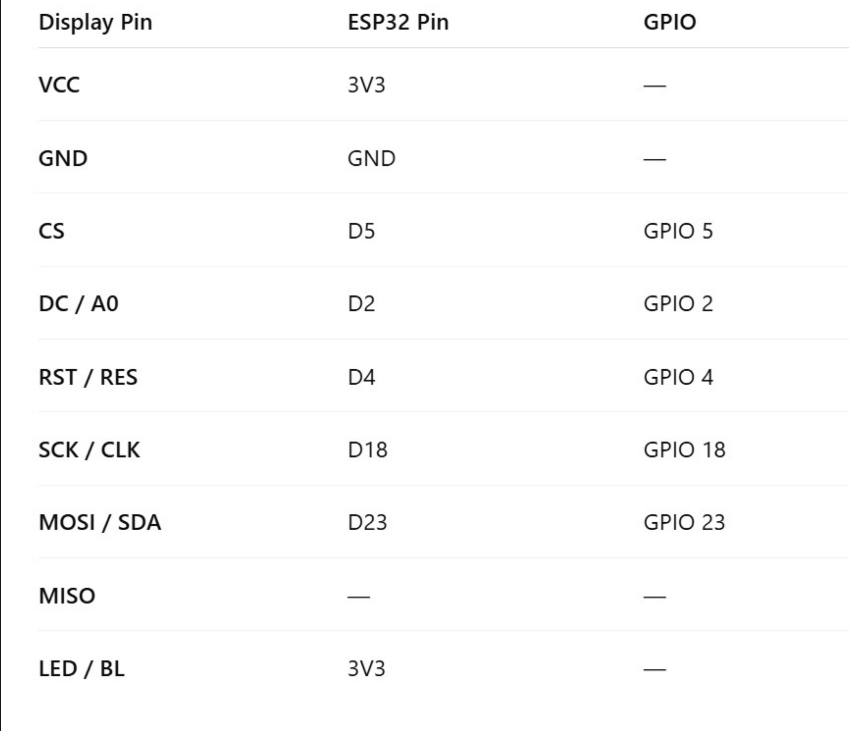
So let’s dive into the first big hurdle: the display. I was working with a 128×128 display that had a set of pins: GND, VCC, SCL, SDA, RES, DC, CS, and BL. Connecting these to the ESP32 correctly was quite a journey. I got some help from ChatGPT to figure out where each pin should go, but it still took several tries to get everything right. The display needed a 3.3V supply, so I connected it to the right 3.3V line on the ESP32.
I’ll include a chart in the blog post that shows exactly how each pin connects, allowing readers to follow easily. The main point is that it took a lot of trial and error. The display kept showing a white screen repeatedly until I finally got the wiring sorted out. It was a slow process, but ultimately, it was successful. And that was just the first step in the adventure!
Breadboard Power Rail Gotcha
Not all breadboards have continuous power rails. In my case, the red and blue rails were split. This meant the other side wasn’t getting any power. I didn’t notice this at first and almost wasted an hour thinking a pin was faulty. Always double-check if your breadboard power rails are connected or need bridging.
Configuring the Display: Setting Up the Libraries
Once I connected the display hardware correctly, the next step was to configure the display settings in the Arduino IDE. This part focused on getting the right libraries and ensuring the software matched the hardware.
I went to my Arduino libraries folder and checked that I had the TFT_eSPI library installed. This library is very popular for these types of displays. Then, I needed to open the library’s configuration file to set the right display parameters and the ESP32 pin definitions I was using.
For anyone following along, it’s about opening the User_Setup.h file in the TFT_eSPI library and making some changes to match your wiring. Once that was done, I enabled the correct display driver and ensured the backlight and control pins were defined correctly. It’s a bit of a process, but it’s important to get the display showing the right output.
With the software configured, the display finally started working as it should. This step was essential before moving on to the next part of the project, and it felt great to see everything functioning on the screen.
Go to User_setup.h and Uncomment
#define ST7735_DRIVER
#define TFT_WIDTH 128
#define TFT_HEIGHT 128
#define ST7735_GREENTAB128
#define TFT_MOSI 23
#define TFT_SCLK 18
#define TFT_CS 5
#define TFT_DC 2
#define TFT_RST 4
#define SPI_FREQUENCY 16000000
Solving the SD Card Formatting Challenge
Let’s now discuss the SD card. I discovered that my 64GB SD card was a little too big for the ESP32’s preferred default formatting options with the aid of ChatGPT. The SD card was formatted as exFAT because it was larger than 32GB, but the ESP32 (and Arduino environment) typically operates best with FAT32.
The problem is that Windows’ standard formatting tool does not provide a FAT32 format option for drives larger than 32GB. Rather, you must perform a small workaround. I started by shrinking the card’s partition in Disk Management so that only 32GB was allotted, leaving the remaining space unallocated.
Then, to format that 32GB partition as FAT32, I used the Command Prompt. The command is simple:
diskpart
list disk
select disk X
clean
create partition primary size=32768
select partition 1
active
assign letter=D
exit
format D: /FS:FAT32
Figuring Out the SD Module
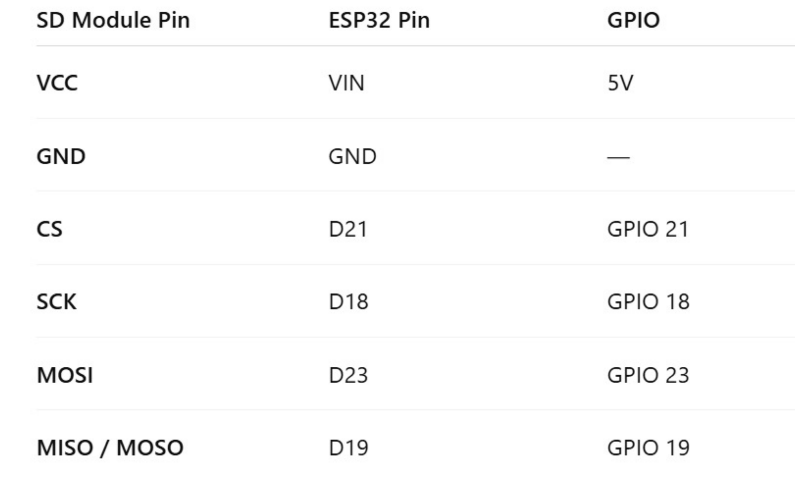
After I got the display working, I turned my attention to the SD card module. ChatGPT pointed out something important: this SD module steps 5 volts down to 3.3 volts on its own. So, I had to feed it 5 volts through the VIN pin—not 3.3V like I first thought. Different boards call the 5V pin different things, so on mine, it was labeled VIN.
Getting the SD module talking to the ESP32 wasn’t exactly quick. I spent hours swapping wires, trying different ports, digging through forums, and just plain guessing until things finally lined up. Honestly, it was a grind. I’ll add a table to the blog post showing exactly which pins go where, but getting the SD module hooked up right took way longer than I expected.
Solving the SPI Bus Challenge
Then came the SPI bus headache. I hooked up the display and the SD module, but sometimes the screen just stayed white, or those blue indicator lines did nothing. It looked like the ESP32 code was just stuck. After poking around, I found the real problem: a classic SPI bus conflict. Both the display and the SD module were fighting for the same SPI line—basically, they were stepping on each other’s toes.
Picture two people trying to squeeze through one door at the same time. One gets through, the other just waits, frustrated. That’s exactly what was happening. So I kept tinkering, trying different setups, until I finally got the SPI connections right. Each device got its own control line. That did the trick. With their own “lanes” on the SPI bus, the display and SD module played nicely, taking turns without any drama. Once I sorted that out, everything just worked.
Final Step: Coding and Testing
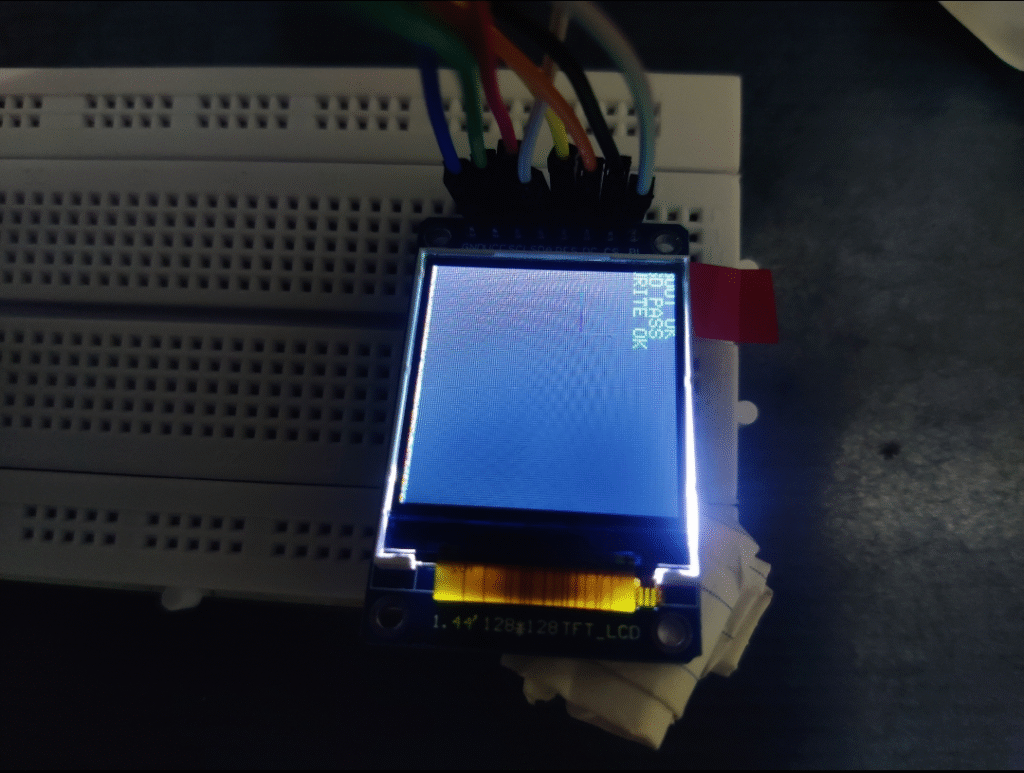
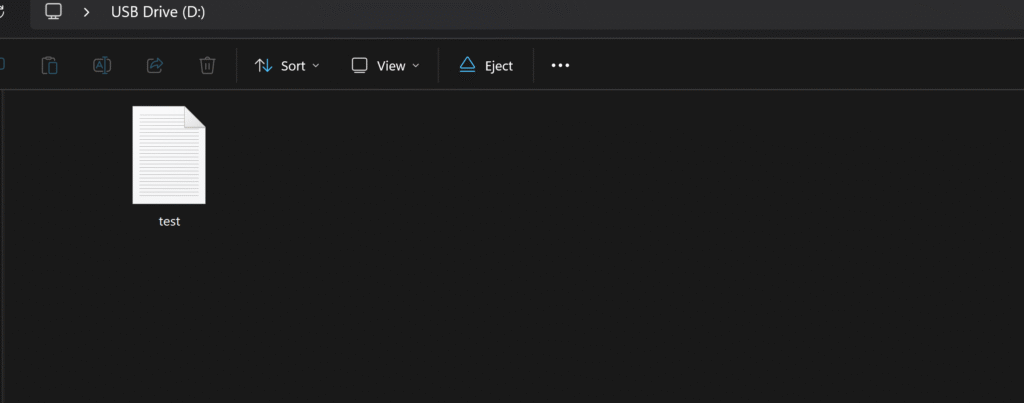
Now for the coding part—this is where it all clicked. Used the C++ programming for it. The code itself isn’t complicated. First, it gets the display up and running. Then it checks if the SD card’s working, flashing either “SD OK” or “SD FAIL” on the screen. After that, it writes a test file to the SD card. Once the code’s uploaded and running, I just take out the SD card, stick it in my computer, and see if the file’s there and looks right. Simple as that.
#include <SPI.h>
#include <SD.h>
#include <Adafruit_GFX.h>
#include <Adafruit_ST7735.h>

/* ===== TFT PINS ===== */
#define TFT_CS   5
#define TFT_DC   2
#define TFT_RST  4

/* ===== SD PIN ===== */
#define SD_CS    21   // change if needed

Adafruit_ST7735 tft = Adafruit_ST7735(TFT_CS, TFT_DC, TFT_RST);

void setup() {
  Serial.begin(115200);
  delay(500);

  /* ----- CS discipline ----- */
  pinMode(TFT_CS, OUTPUT);
  pinMode(SD_CS, OUTPUT);
  digitalWrite(TFT_CS, HIGH);
  digitalWrite(SD_CS, HIGH);

  /* ----- Display init ----- */
  tft.initR(INITR_BLACKTAB);
  tft.setRotation(1);
  tft.fillScreen(ST77XX_BLACK);
  tft.setTextSize(1);
  tft.setTextColor(ST77XX_GREEN);

  tft.setCursor(0, 0);
  tft.println("BOOT OK");
  delay(500);

  /* ----- SD init ----- */
  digitalWrite(TFT_CS, HIGH);
  digitalWrite(SD_CS, LOW);

  if (!SD.begin(SD_CS)) {
    tft.setTextColor(ST77XX_RED);
    tft.println("SD FAIL");
    Serial.println("SD init failed");
    while (1);
  }

  tft.setTextColor(ST77XX_GREEN);
  tft.println("SD PASS");
  Serial.println("SD init success");

  /* ----- Write test file ----- */
  File testFile = SD.open("/test.txt", FILE_WRITE);
  if (testFile) {
    testFile.println("Finally we did it dude!");
    testFile.close();
    tft.println("WRITE OK");
    Serial.println("File written");
  } else {
    tft.setTextColor(ST77XX_RED);
    tft.println("WRITE FAIL");
    Serial.println("File write failed");
  }

  digitalWrite(SD_CS, HIGH);
}

void loop() {
  // nothing here – this is a test sketch
}
It was really a lot of work to do. It might seem small, but I know how time-consuming it was. Overall, all the hard work paid off. Now this mini beast is ready for some new projects.

LINK TO THE HARDWARE
ESP32 development board – https://amzn.in/d/3yXWVol
128×128 HD TFT OLED display – https://amzn.in/d/arMZvge
SD card module – https://amzn.in/d/0F0umhc
Breadboard & Jumper Wires – https://amzn.in/d/5S1TlAA